Building Believable Boat Traffic in Virtual Sailor: Waypoints, Autopilot, and Why Every Vessel Needs Its Own Setup
This is the first of a two-part series about setting up and using the Virtual Sailor autopilot to teach rules of the road in navigation.
One of the most satisfying things you can do in Virtual Sailor is stop boating solo and start populating your world with other traffic—ferries running a schedule, cargo ships holding a shipping lane, fishing boats working a coastline. It turns an empty stretch of simulated ocean into something that feels alive. The tool that makes it possible is the same GPS/waypoint system you use to navigate your vessel, paired with the sim’s built-in autopilot. But there’s a catch worth understanding early: that setup doesn’t carry over automatically from one boat to the next. Every vessel you want navigating on its own has to be configured on its own.
The Building Blocks: Waypoints and the In-Sim Autopilot
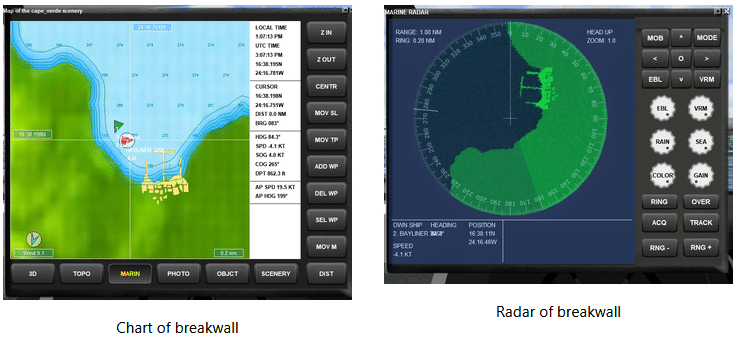
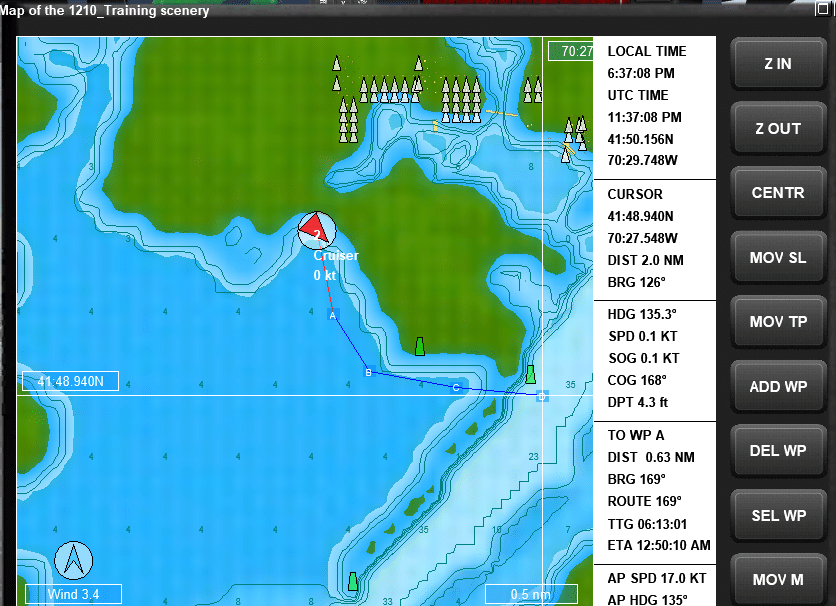
Virtual Sailor’s GPS lets you place waypoints on the chart—marking a sequence of positions strung together into a route. Once a route exists, the sim’s autopilot can take a vessel and steer it from point to point automatically, holding a course and adjusting heading as it goes, rather than requiring you to hand-steer.
For a single vessel, this is a nice quality-of-life feature—plan a passage, hit autopilot, and let the boat make its way while you manage sails, throttle, or just watch the scenery. But the real payoff shows up when you use it to script other boats, turning the sim into a live traffic simulation rather than an empty ocean with one boat in it.
From “My Route” to “Traffic”: What Changes
When you’re building out a boat traffic scenario—a harbor with ferries crossing on schedule, a channel with commercial traffic, a marina full of boats coming and going, you are really doing the same waypoint-and-autopilot workflow multiple times over, once per vessel:
- Select the vessel you want to script. Each boat in Virtual Sailor has its own identity in the sim, its own position, its own waypoint list, and its own autopilot state.
- Lay down its route independently. A ferry’s waypoints running harbor-to-harbor are separate from a cargo ship’s waypoints running up the coast; the sim tracks waypoints per boat, and by design you can toggle the display to show only the selected vessel’s route rather than everyone’s at once. Use the ADD WP button on the chart plotter to define the route and the panel function (P) to set the throttle; otherwise, it will tend to go immediately to full throttle when the autopilot is engaged.
- Engage that vessel’s autopilot on its own route. Loading a boat doesn’t inherit engine or autopilot state from anything else. Each one starts with the engine and autopilot off until you set it, which is exactly what you want when you’re placing multiple boats and don’t want them all lurching into motion at once. The autopilot can be engaged from the panel, the keyboard (A) or in some boats, by clicking a switch on the console.
- Repeat, vessel by vessel. There’s no apply this route to all traffic shortcut; the individual setup is the mechanism you must use.
Why the Per-Vessel Setup Actually Helps
It’s tempting to want a single master route that every ship in the harbor follows, but think about what real traffic looks like: a ferry has a fixed shuttle route, a container ship is transiting through on an entirely different line, and a fishing boat is doing something unrelated to either. Individual waypoint sets per vessel is what makes that variety possible. It’s also what lets you stagger timing and speed so boats don’t all arrive at the same pinch point simultaneously. Each vessel’s autopilot manages its throttle behavior as it works through its route, refined over the sim’s updates to be smoother about speed transitions rather than snapping straight to cruising speed.
A few practical habits make multi-vessel scenes easier to build:
- Name and route one boat at a time, and lean on the per-vessel waypoint display so you’re not trying to read a spaghetti chart of every route overlapping.
- Plan around geometry, not just distance. A route that looks fine on the chart can put two autopiloted vessels on a collision course at a shared waypoint; the autopilot steers to the route; it doesn’t negotiate with other traffic.
- Stagger your departures. Since each vessel’s autopilot starts in the off state on load, you control exactly when a given boat begins moving, which is the easiest lever you have for keeping a busy scene from becoming a pile-up.
- Save your routes as you build them out, since a populated harbor scene with a dozen vessels each on their own route represents real setup time, you would rather not have to redo them.
The Payoff
Once a handful of vessels are each running their waypoint route on autopilot, the difference is immediate. Instead of an empty simulated sea, you get a channel with a ferry on schedule, a tanker holding its line, and small craft moving independently in the background. None of that comes from a single global setting; it comes from doing the same careful, boat-by-boat waypoint-and-autopilot process for every vessel in the scene. It’s a bit more setup work up front, but it’s precisely what makes the traffic feel like independent vessels going about their own business rather than scenery on rails.
Next up is how to apply this to the classroom.